Trading Infrastructure
MT4/MT5 on a VPS in 10 Minutes (Without Your EA Going Silent)
Some links on this page are affiliate links. We may earn a commission if you sign up through them, at no extra cost to you.
My first VPS setup took nine minutes and I was very pleased with myself. Then the host rebooted the machine for maintenance two days later, MT4 restarted without AutoTrading enabled, and my EA sat there in silence for 48 hours while I told people my system was "running on a server now".
The setup is easy. Making it survive a reboot is the actual job.
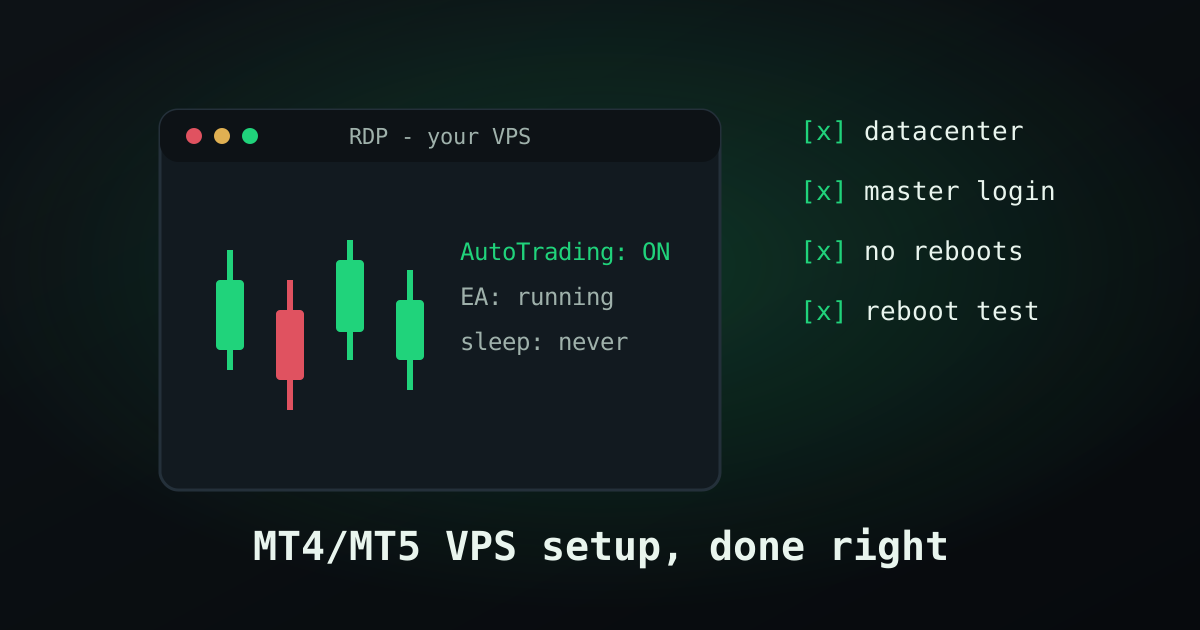
The setup, in order
- 1Pick the datacenter before anything else. Ask your broker's support which city their MT4/MT5 servers are in (usually London/LD4, New York/NY4 or Amsterdam). Pick the VPS location to match. Moving later is a full re-setup, choosing right now is one dropdown.
- 2Connect via RDP. Your provider mails you an IP, username and password. On Windows: Remote Desktop Connection. Mac: Windows App from the App Store. Phone: RD Client — worth installing for step 8.
- 3Download MT4/MT5 from your broker, inside the VPS, not from metatrader.com. Broker builds come preconfigured with the right servers.
- 4Log in with your MASTER password, not the investor one. Investor login looks identical and can't trade — the classic silent failure. If your EA places nothing for a day, check this first.
- 5Copy your EA + presets over. Easiest route: on the VPS, open your email or cloud drive, download the .ex4/.ex5, drop it in File → Open Data Folder → MQL4/Experts. Restart the terminal.
- 6Enable AutoTrading and check the smiley. Big button, top bar. Green = live. Attach the EA, confirm "Allow Algo Trading" in its settings too — both switches must be on.
- 7Now disable everything that reboots or sleeps. Windows Update → set active hours and pause; Power settings → never sleep, never turn off. On a proper trading VPS most of this comes preconfigured; on a generic box it does not, and this is the step that kills EAs.
- 8Set up alerts before you log out. In MT4/MT5: Tools → Options → Notifications, link the MetaQuotes ID from your phone app. Have the EA or terminal push you a heartbeat — even a daily "still alive" beats silence.
Sponsored
Skip half these steps
ForexVPS.net images come with MetaTrader preinstalled, update policies already tamed and the datacenters labelled by broker hub — you mostly just log in and attach your EA.
Get a preconfigured VPSRunning more than one terminal
You can't install MT4 twice in the same folder and expect two logins. Install each terminal in its own directory ("MT5 - FTMO", "MT5 - Personal") using the installer's custom path option. Budget roughly 1–1.5GB RAM per terminal, and watch Task Manager for a week before you trust the stack — RAM creep is real when a copier and four charts are involved.
Leaving terminals unattended is like leaving your dog with a sitter. It goes fine, but only because you wrote down the feeding times, the vet's number and where the leash hangs. The checklist is the care. Wing it and you'll come home to chewed furniture, or in our case, an EA that hasn't traded since Tuesday.
The weekly 2-minute check
- RDP in. Glance at RAM/CPU in Task Manager — anything pinned at 100% is a warning, not a quirk.
- Check the Experts and Journal tabs for errors your phone alerts missed.
- Confirm Windows hasn't queued a forced restart (the countdown hides in Update settings).
- Once a month: log terminal versions — brokers push MT5 builds that occasionally break older EAs.
Do the reboot test once, do the weekly glance every week, and a VPS turns MetaTrader into something you genuinely stop thinking about. That's the whole promise. Just don't skip step 7 — everything else in this guide is recoverable, that one isn't.
Frequently asked questions
How do I keep MT4 running 24/7?
Install it on a Windows VPS, enable AutoTrading, disable sleep and forced update reboots, add the terminal to the startup folder, and set phone notifications. The VPS keeps running when your own computer is off.
What latency should I aim for?
Under 50ms to your broker's server is fine for nearly everything; under 5ms only matters for scalping-grade EAs. Match the VPS datacenter to the broker's server city and latency largely takes care of itself.
Can I run multiple MT4/MT5 terminals on one VPS?
Yes — install each in its own folder and budget 1–1.5GB RAM per terminal. A 4GB plan handles two comfortably; a copier plus three or four terminals wants 8GB.
Why did my EA stop trading after a VPS reboot?
Usually AutoTrading came back disabled, the terminal didn't auto-start, or the platform logged in with cached investor credentials. Run a deliberate reboot test once so you know your stack recovers on its own.
Keep reading
Risk note